
BestTrack at a glance: what it does, where it wins, what buyers ask
The one-pager on the left, a consistent 1,000-shipments/month price comparison on the right, then the official feature guide and FAQ.
One-pager + competitor edge
The product on one page (click to enlarge); compare price and feature access at a consistent 1,000 shipments/month.
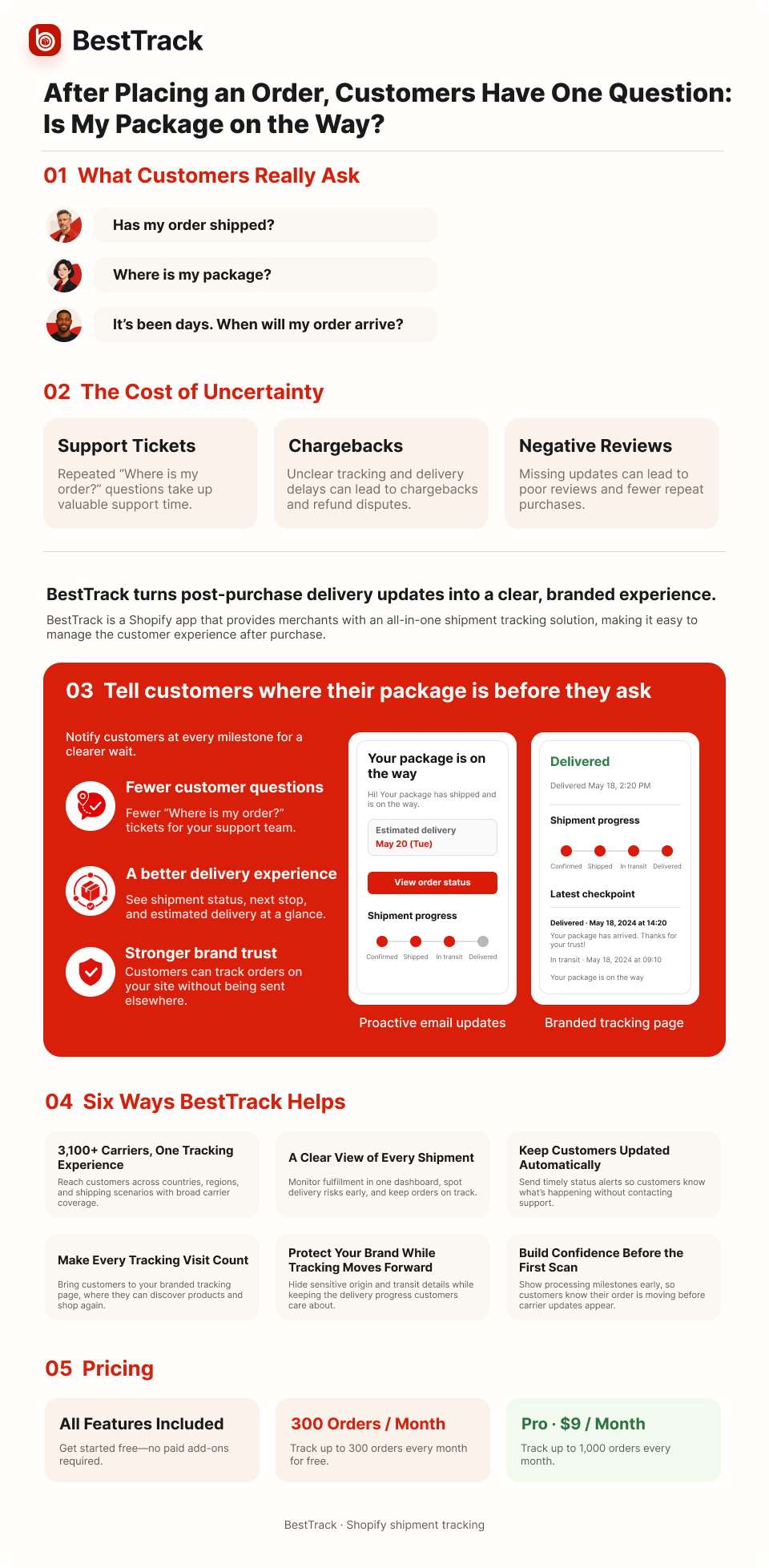
At a consistent 1,000 shipments/month, BestTrack costs only $9 — about one-fifth of the most expensive comparable option. There is no feature paywall: EDD, custom checkpoints and template editing are included in the free plan.
| BestTrack | 17TRACK | Track123 | AfterShip | CWILL | |
|---|---|---|---|---|---|
| Free quota | 300 / month | 50 / month | 50 / month | 50 / month | 20 / month |
| Monthly cost for 1,000 | $9 | $49 | $44 | $83 | $51 |
| Overage | $0.03 | Volume tiers | $0.05 | $0.08–0.12 | $0.05 |
Feature guide
Synced from the StandHigher official feature library — one article per feature, with outcomes, setup and plan permissions.
2.1 Tracking & sync
Orders, carrier events, sync windows and notifications in one daily workflow.
One place for every order — search, filter and spot problems before customers do.
Read the guide → Free planCSV exportMove the current order-tracking view into a spreadsheet for operations or support work.
Read the guide → Free planAutomatic notificationsKeep customers updated automatically so they do not need to ask where an order is.
Read the guide → Free planMerchant alertsBestTrack watches shipment health for your team, not only for your customers.
Read the guide → Free planOrder tracking page failed to addAdd the tracking page to your store navigation manually when the in-app install does not succeed.
Read the guide → Free plan90-day sync windowSync a full quarter of order history in one run, with automatic de-duplication.
Read the guide →2.2 Branded tracking page
Give customers a branded, store-domain tracking experience.
A self-serve tracking page that looks like your store, not a third-party carrier site.
Read the guide → Free planRegion blockingHide location fields that match editable English keyword rules while keeping shipment statuses visible.
Read the guide → Free planDropshipping ModePresent a clean pre-shipment journey to customers without exposing supplier and routing details.
Read the guide → Free planTracking URL rewrite switchDecide whether customers stay on your branded tracking page or go straight to the carrier.
Read the guide →2.3 Data & localisation
Compare carrier performance and filter shipment data by destination.
2.4 Checkpoints & email
Shape checkpoints, email content and sender identity around your brand.
Create and reorder logistics checkpoints to shape the tracking journey.
Read the guide → Free planCustom checkpoint email notificationTell customers when an order reaches the first enabled custom pre-shipment step — once per order.
Read the guide → Free planCustom email templatesMake each shipment email sound and look like your brand.
Read the guide → Free planYour own sending domainSend tracking emails from your store address so customers see your brand and replies reach your inbox.
Read the guide →2.5 Integrations
Connect marketing, support, payments and AI tools to your existing workflow.
Send shipment events to Klaviyo so post-purchase flows can follow delivery progress.
Read the guide → Free planGorgias integrationConnect BestTrack to Gorgias with OAuth so support agents can view order tracking and shipment history inside their helpdesk.
Read the guide → Free planPayPal integrationSync shipment information for Shopify orders paid with PayPal so buyers can follow their delivery progress.
Read the guide → Free planMCP Server integrationChoose API Key or OAuth to let an AI client read the tracking data allowed for your current BestTrack store.
Read the guide → Free planShopify Sidekick shipment toolsAsk Sidekick about a shipment inside Shopify admin instead of switching between apps.
Read the guide →2.6 Billing & quota
Understand plans, order quota and billing rules as usage grows.
FAQ
Synced from the official FAQ — 64 answers covering setup, sync, tracking page, checkpoints, email, integrations, billing and errors.
3.1 Installation & basic setup 8 questions
01What does BestTrack do?
BestTrack syncs Shopify orders and fulfillment tracking into one merchant dashboard. Merchants can search and filter shipments, export CSV data, publish a tracking-number lookup page under the store domain, enable customer emails, and use Dropshipping Mode for keyword-based location masking and pre-shipment checkpoints. Free includes 300 tracked orders per month; Pro includes 1,000 for $9 per calendar month plus $0.03 per additional order.
02What should I configure first after installing BestTrack?
- Confirm that recent orders appear in the tracking dashboard; installation syncs up to 300 orders from the previous 60 days without using the monthly allowance.
- Publish
/apps/bestrackto the Main menu or Footer menu. - Choose and enable the customer email events you need.
- If relevant, enable Dropshipping Mode and configure English Region Blocking keywords and Custom Checkpoints.
- Save enabled checkpoints; they apply automatically to existing and newly synced orders. Use Apply only for preview or manual adjustment.
- Dropshipping Mode is off by default. Enable it to use its customer-facing features.
03Why did BestTrack not send emails automatically after installation?
Customer shipment events are off by default. Open Notification → Notify Customer, enable the events you want, and save. BestTrack sends only when a new matching status occurs after the event is enabled; it does not backfill earlier events.
Available shipment events: In Transit, Out for Delivery, Ready for Pickup, Delivery Failed, and Exception. Custom Checkpoint Reached is a separate event.
04Does BestTrack have a Chinese interface?
The merchant interface is currently English. Free stores can use editable email templates containing Chinese or other language characters. The tracking proxy can translate raw event descriptions and locations for en, zh-CN, fr, es, and de, but the customer bundle still needs to pass the language parameter; do not treat this as confirmed page-level localization.
05Does BestTrack change product prices, inventory, or SKUs?
No. BestTrack is used for order tracking displays, shipment emails, and plan usage. It does not edit product prices, inventory, or SKUs.
06Can I remove the BestTrack watermark?
Contact support to remove the watermark. There is currently no self-service removal option.
07Are EDD, ads and product recommendations free?
Yes. EDD, tracking-page ads and product recommendations are included on Free. Configure them in BestTrack before displaying them to customers.
08Which languages does the BestTrack admin support?
The admin is available in English, Chinese, Spanish, European Portuguese and French. The same languages cover the template editor, the order extension, tracking emails and error messages, with dates and percentages formatted for each locale. Translation coverage for raw carrier events depends on whether the customer page passes a language parameter.
3.2 Order sync & lookup 10 questions
09Why is a Shopify order missing from BestTrack?
- Confirm that the order has usable fulfillment or tracking information.
- Refresh the order list and search by order or tracking number.
- Check filters and date ranges.
- Review plan usage; new orders pause when a Free store exceeds 300 tracked orders in a month.
- If it is still missing, send support the store domain, order number, tracking number, order time, and screenshots.
10How can I filter the tracking dashboard for daily operations?
Use the dashboard to search by order or tracking number and narrow the list by shipment status, carrier, destination, order date, or a custom date range. Installation sync can bring in recent orders from the previous 60 days without using the monthly allowance, and new Shopify order or fulfillment updates continue refreshing tracked records after the initial sync.
11How does CSV export work?
BestTrack can export the current page, selected waybills, the current filtered result, or all waybills as CSV. A single export can include up to 50,000 records. Fields can include order and tracking numbers, status, latest event, carrier, destination, tracking-page URL, timing, tags, store details, and customer details when available.
12Do repeated tracking updates for one order use extra quota?
No. Usage is based on tracked orders in the month. Multiple shipment updates for the same order still count as one order.
13How can a customer look up an order?
Publish the store-domain page at /apps/bestrack to a Shopify menu. Customers can look up shipments by tracking number, and the response can include multiple packages, carriers, events, and related item details. Customers can also look up shipments by order number plus email.
14Why is the customer timeline different from the merchant timeline?
This can be expected when Dropshipping Mode applies Region Blocking or Custom Checkpoints. Region Blocking hides matching location fields from the customer response but preserves shipment events and statuses; Custom Checkpoints are synthetic pre-shipment display steps and are not injected into the merchant order detail. The merchant dashboard retains the underlying carrier history.
15Does syncing orders use my allowance?
Initial installation sync imports up to 300 recent orders without using the monthly allowance. Manual sync counts toward the allowance.
16How far back can I sync order history?
Manual sync now supports up to 90 days (previously 60), so a full quarter can be imported in one run. Running the same sync again de-duplicates automatically, and only orders with a tracking number count toward the monthly allowance.
17Where can I compare carrier performance?
Open Analytics and use the carrier comparison view, which is now the default: five metric cards on top and a carrier-by-carrier breakdown below. You can filter by date and destination, sort and paginate server-side, and every metric has a tooltip explaining how it is calculated.
18Can I choose where the customer tracking link goes?
Yes. The tracking URL rewrite switch lets you keep customers on your branded tracking page or send them to the carrier's own site. Turning the switch off restores the original links and applies to newly sent emails and pages immediately; it changes only where a link points, not the shipment itself.
3.3 Tracking page & region visibility 5 questions
19How do I hide selected regional tracking events from customers?
- Open
Dropshipping Mode → Region Blockingand keep the master switch enabled. - Review the default English keywords and add or remove the locations or terms your store needs.
- Save the rules.
- Verify the result on the customer tracking page.
Matching country, state, city, street, and other location fields are hidden while shipment events and statuses remain visible. This feature is included on Free.
20Can merchants still see the complete route after Region Blocking is enabled?
Yes. Region Blocking changes the customer response by removing location fields that match the configured English keywords. It does not delete shipment events or statuses, and the merchant dashboard continues to show the underlying tracking history.
21Why can customers still see some related regional events?
Region Blocking preserves the event and status; it hides only location fields whose text matches a configured keyword.
- Confirm that Dropshipping Mode and Region Blocking are enabled and saved.
- Check the exact English location text in the event and add the missing city, airport, customs, or other keyword if needed.
- Remove duplicate or overly broad rules.
- Verify on the customer page, not only the merchant dashboard.
- If a matching location remains visible, send support the tracking number, keyword, and screenshot.
22Why does Region Blocking show a plan or access message?
Region Blocking is included on Free. Enable Dropshipping Mode, save your keyword rules, and refresh. If an access message remains, contact support with your store domain and a screenshot.
23What does Dropshipping Mode change for customers?
Dropshipping Mode is off by default. When enabled it shows your custom pre-shipment checkpoints and applies Region Blocking location masking, so customers see a clean journey instead of supplier and routing details. Region Blocking only takes effect while Dropshipping Mode stays on, and turning it off restores the default view without deleting your saved settings.
3.4 Custom checkpoints 10 questions
24What problem do custom checkpoints solve?
They fill the quiet period between checkout and the carrier's first scan with display steps such as order review, quality check, packing, or labeling. The fixed system node is Order Confirmed, and the default custom node is Quality Check Passed / Packaged.
You can add up to eight custom checkpoints and configure no more than ten total steps. These times are calculated from the order time and your offsets; they are not real carrier scans. This feature is included on Free.
25How do I add custom checkpoints?
- Open
Dropshipping Mode → Custom Checkpointsand keep the master switch enabled. - Select
+ Add checkpoint. - Enter a name, description, and interval, then enable the node.
- Add other steps and drag them into order.
- Save the configuration. Enabled checkpoints automatically apply to existing tracked orders and to orders added by installation sync, manual sync, or order updates.
- Use the order list and Apply only when you need to preview, manually adjust, or reapply the workflow.
26Can I add more than one custom checkpoint?
Yes. The current version supports multiple pre-shipment checkpoints, each with its own name, description, and display timing.
27Can I reorder custom checkpoints?
Yes. Drag checkpoints into the preferred order; you do not need to delete and recreate them.
28How is a custom checkpoint’s display time calculated?
Timing is continuous. The first checkpoint is calculated from the customer’s order time. Each later checkpoint continues from the previous checkpoint time. Offsets can use days, hours, and minutes.
29Can I apply custom checkpoints only to selected orders?
Enabled checkpoints now apply automatically to existing and newly synced orders, so selecting orders is not required for the normal workflow. The order list and Apply action remain available when you need to preview, manually adjust, or reapply the workflow to specific orders. You can search or filter before making that manual selection.
30Can each checkpoint use a different set of orders?
Not as separate per-checkpoint audiences. The enabled saved workflow is automatically applied as one sequence to existing and newly synced orders. The manual order list can preview, adjust, or reapply the complete workflow for selected orders, but it does not assign a different order set to each individual checkpoint.
31Why are custom checkpoints missing from the customer page?
- Confirm that Dropshipping Mode is enabled.
- Confirm that at least one custom checkpoint is enabled and the configuration was saved.
- Use an order that has synced into BestTrack; saved enabled checkpoints should apply automatically to existing and newly synced orders.
- If needed, select the order and click Apply to reapply it manually.
- Check whether the calculated checkpoint time falls before the carrier's first information event.
- Refresh the store-domain customer tracking page.
32Can a custom checkpoint appear between real carrier events?
No. Custom checkpoints represent the merchant’s pre-shipment workflow. They appear between Order created and the carrier’s first Shipment information received event, not inside the real carrier journey.
33What happens if checkpoint timing goes beyond the carrier’s first event?
BestTrack limits custom checkpoints to the period before the carrier's first shipment information event so the merchant workflow does not conflict with real tracking events.
3.5 Email notifications & templates 11 questions
34Which email notification events does BestTrack support?
Shipment events include In Transit, Out for Delivery, Ready for Pickup, Delivery Failed, and Exception. These switches are off by default and must be enabled by the merchant. Custom Checkpoint Reached is configured separately under Dropshipping Mode and sends automatically after it is enabled.
35Does BestTrack send merchant exception alerts?
Yes. Merchant exception reports are included on Free and automatically sent to configured recipient inboxes. Review the report settings and recipient addresses if a report does not arrive.
36How do I edit an email subject and message?
- Open
Notification → Notify Customer. - Enable the event.
- Select
Customize email template. - Edit the subject and body and insert the variables you need.
- Check Preview and click Save template.
Email template editing is included in the Free plan.
37Which variables can I use in an email template?
Available variables include order number, customer name, tracking number, carrier, tracking-page link, and store name. Tracking number and carrier are system values. BestTrack currently does not provide an estimated delivery date variable.
38Which address sends BestTrack emails?
Emails are sent from noreply@mail.besttrack.app. The sender name shown to the customer is the merchant’s store name.
39Why did a customer not receive a shipment email?
- Confirm that the event is enabled and saved.
- Confirm that the matching status changed after the event was enabled.
- Check whether the same event for the order was already sent within 30 minutes.
- Ask the customer to check spam and promotions folders.
- Wait about one minute and refresh the record.
- If it is still missing, send support the store domain, order number, event, trigger time, and customer email.
40Why did the same status not send another email immediately?
To prevent duplicate messages, BestTrack does not resend the same shipment event for the same order within 30 minutes.
41Does BestTrack support SMS notifications?
No. BestTrack currently supports email notifications only.
42Can tracking emails be sent from my own domain?
Yes. Verify a sending address with a six-digit code, then add two DNS records following the in-app instructions. The same address controls both the From address and where customer replies land; verification can take up to 48 hours, and you can switch back to the default address at any time.
43What is the Info received notification?
It is an additional shipment event that fires as soon as the carrier accepts the parcel, before the first tracking scan. It has its own switch and template, separate from the other six status emails, is off by default to avoid duplicate messages, and the email can include the estimated delivery date.
44Can I edit email templates visually?
Yes. The template editor uses blocks: product, order details, tracking checkpoints and branded footer can be dragged into any order, with a live preview on the right. The product block hides automatically when an order has no product data, empty blocks are blocked before saving, and you can restore the default template at any time.
3.6 Integrations & automation 6 questions
45Which tools can BestTrack connect to?
BestTrack integrates with Klaviyo for post-purchase flows, Gorgias for support tickets, Shopify Sidekick for in-admin shipment lookups, and any MCP-compatible AI client through the BestTrack MCP Server.
46How do I connect Klaviyo?
Open Integrations, find Klaviyo under Automation, and paste the Klaviyo Public API Key. You choose which fields to send, and you can fire a test event before enabling a live flow so you can confirm that BestTrack sends and Klaviyo receives the data.
47How does the Gorgias integration work?
After a guided OAuth authorization, the Gorgias ticket sidebar shows a shipment card with order number, service type, origin, destination and the latest event. Agents can search by customer email and get up to 50 shipments at once, and when a carrier has no events yet they can send the carrier's official tracking link to the customer.
48What is the BestTrack MCP Server?
It exposes BestTrack shipment data to AI clients that support the Model Context Protocol, using three read-only tools: look up a shipment, inspect tracking details and list delivery exceptions. Requests are bound to a single store, so a client cannot switch shops through an input parameter, and API keys can be created, rotated and revoked.
49Should I use an API key or OAuth for MCP?
Both work. An API key is copied once and needs manual rotation if it leaks; OAuth opens a consent page that names the client, the connected store and the requested scopes, limited to read-only shipment and exception access. Connected apps can be reviewed and revoked in the admin, and revocation takes effect immediately.
50Can I look up shipments inside Shopify admin?
Yes, through Shopify Sidekick. It can check a shipment, inspect tracking details and list delivery exceptions for the connected store without switching apps. The tools are read-only, and when a carrier has no events yet the result links to the carrier's official tracking page.
3.7 Plans, usage & billing 11 questions
51What is the difference between Free and Pro?
| Feature | Free | Pro |
|---|---|---|
| Price | $0 | $9/month |
| Included tracked orders | 300/month | 1,000/calendar month |
| After the limit | New orders pause | $0.03/order |
| Customer email controls | Included | Included |
| Region Blocking | Included | Included |
| Custom checkpoints and checkpoint email | Included | Included |
| Editable email templates | Included | Included |
Pro adds a higher included order allowance and continued tracking with overage billing. The listed product features are included on Free.
52Which features are included in Free?
Free includes the store-domain tracking page, customer email controls, editable email templates, the order tracking dashboard, CSV export, Region Blocking, Custom Checkpoints, and checkpoint email notifications. The main plan difference is order allowance: Free includes 300 tracked orders per month, while Pro includes 1,000 per calendar month and continues tracking additional orders at $0.03 each.
53When does the monthly order allowance reset?
Order allowances reset on the first day of each calendar month. Shopify subscription charge dates are shown separately in Billing.
54What happens when Free exceeds 300 tracked orders?
New orders pause and the dashboard shows a usage warning. Wait for the next monthly reset or upgrade to Pro to resume tracking new orders.
55Does Pro stop tracking after 1,000 orders?
No. Tracking continues. Orders above the included 1,000 are billed at $0.03 per order for that month.
56Why did orders suddenly stop syncing or tracking?
- Check current-month usage in Billing or Usage.
- If a Free store reached 300 orders, the pause is expected.
- Wait for the next reset or upgrade to Pro.
- If the limit has not been reached, collect the order details and contact support.
57How do I upgrade to Pro?
- Select
Upgrade to Pro. - Review the price and features.
- Select
Confirm — $9/month. - Approve the subscription on the Shopify Billing page.
- Return to BestTrack and confirm that Pro features are unlocked.
58What should I do if payment fails or Pro does not unlock?
- Confirm that Shopify billing authorization was completed.
- Return to BestTrack and refresh the current plan.
- Check the app subscription status in Shopify admin.
- Avoid repeatedly confirming the same operation.
- Send support the store domain, operation time, and error screenshot.
59What happens after downgrading to Free?
The downgrade starts in the next billing cycle and the current paid period is not refunded. The included allowance returns to 300 tracked orders per month, and new-order tracking pauses after that allowance is reached. Core features, including editable email templates and full Dropshipping Mode, remain available on Free.
60When is the BestTrack bill created?
BestTrack uses Shopify Billing. Billing dates follow the subscription cycle shown by Shopify and BestTrack. Pro charges include the $9 monthly subscription and any $0.03-per-order overage from the usage period.
61How do I redeem a code?
Enter the code on the BestTrack home screen; the benefit is applied immediately with no manual approval. You can check the code's value and expiry before redeeming, the badge and billing details update together, and submitting the same code twice does not apply it twice.
3.8 Errors & support 3 questions
62What does an upgrade prompt or 403 error mean?
Editable email templates and full Dropshipping Mode are included on Free, so an upgrade prompt or 403 for these actions may indicate stale access data or a runtime error. Refresh and reopen the page; if the message remains, send support the store domain, plan shown in Billing, page path, operation time, and screenshot.
63Why did a setting return to its previous value after refresh?
The setting was likely changed without clicking Save or Apply. Repeat the change, click the page’s Save, Apply, or Save template action, wait for the success message, and refresh to confirm it was stored.
64What information should I send to technical support?
- Shopify store domain and current BestTrack plan
- Page, action, and steps that produced the issue
- Order and tracking numbers
- Time of the issue and time zone
- Complete error text or screenshots
- Customer and merchant view screenshots when relevant
- For email issues: event, trigger time, and recipient address
- Whether the issue is repeatable and what you already tried