
Connect BestTrack MCP with an API Key
Give an AI client read-only access to the tracking data allowed for your current store.
1. Create a read-only Key
Open MCP integration in BestTrack Admin. Create a Key and select only the read-only permissions needed for the tracking questions you plan to ask.
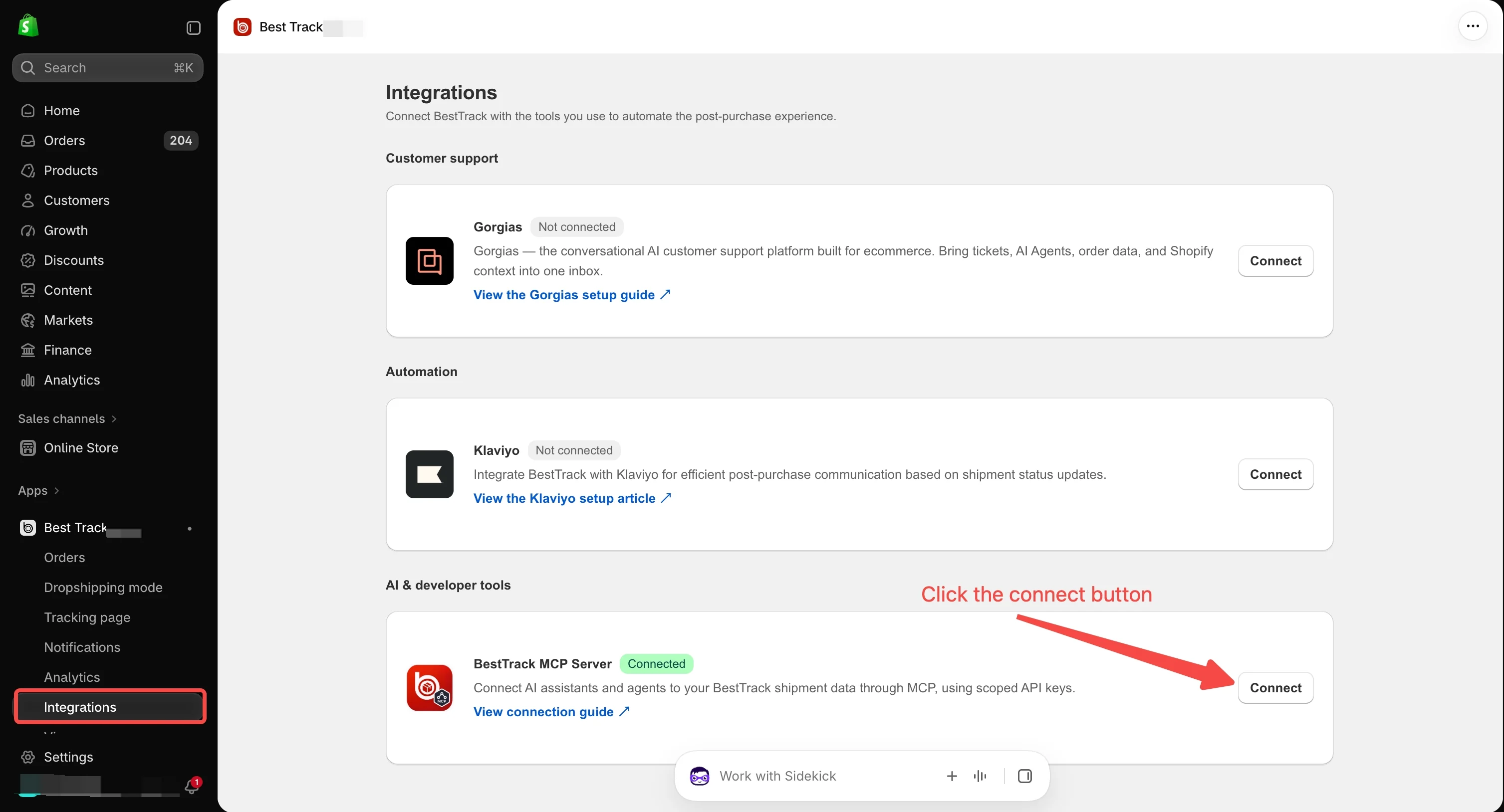
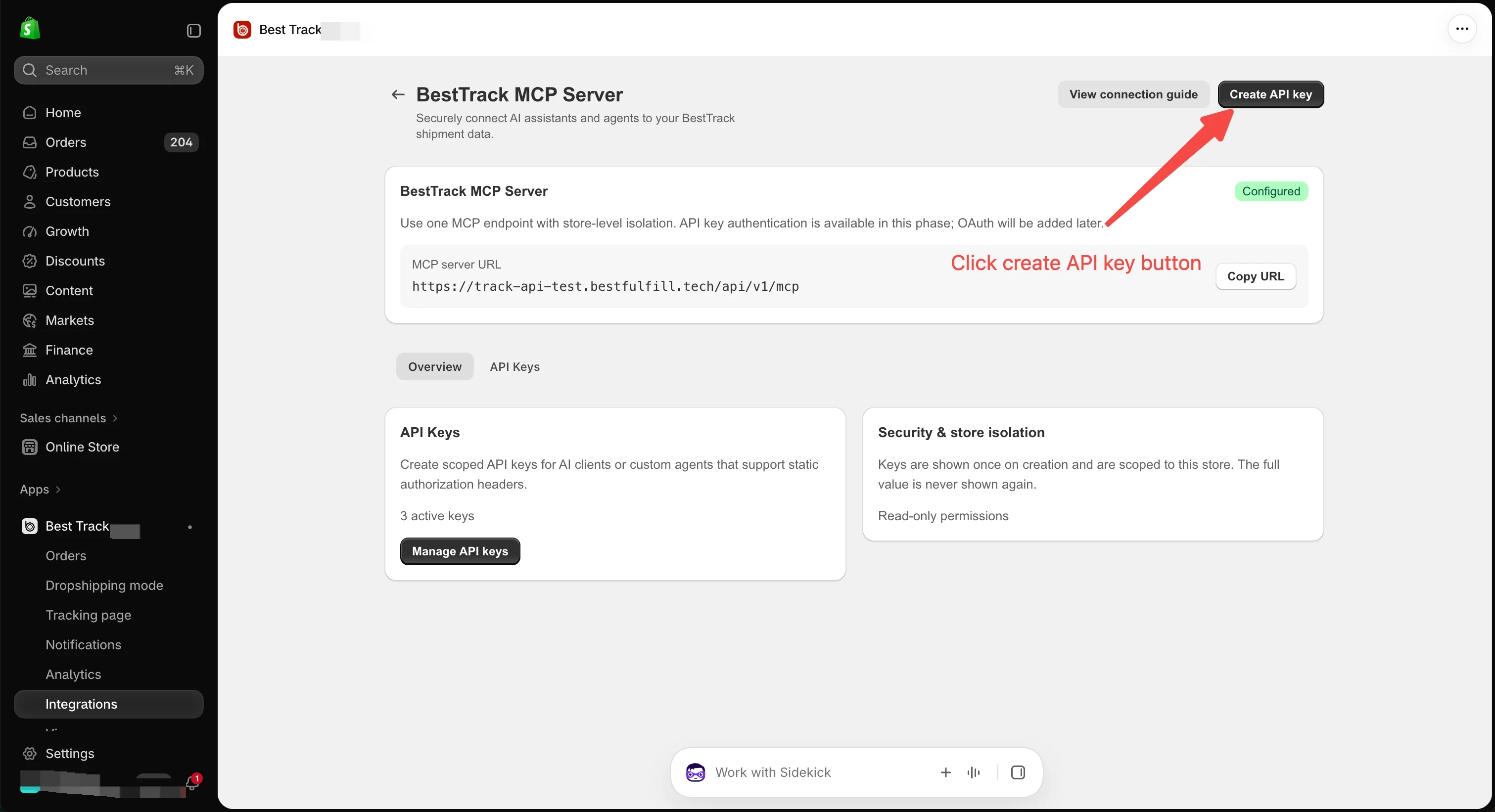
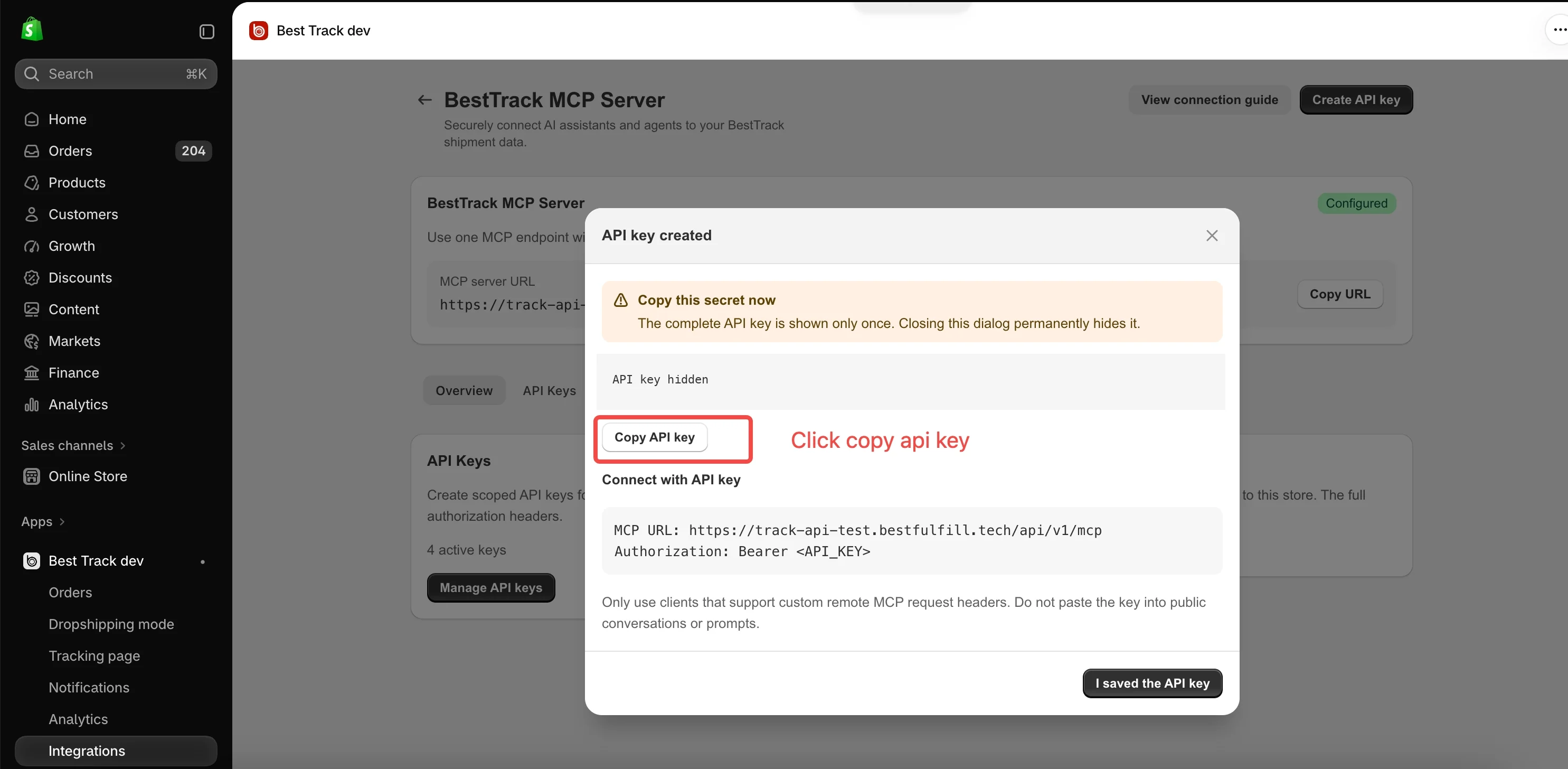
2. Copy and save the Key now
The complete Key is shown only once. Copy it when it is created and store it somewhere secure. If you lose it, create a new Key and update your client.
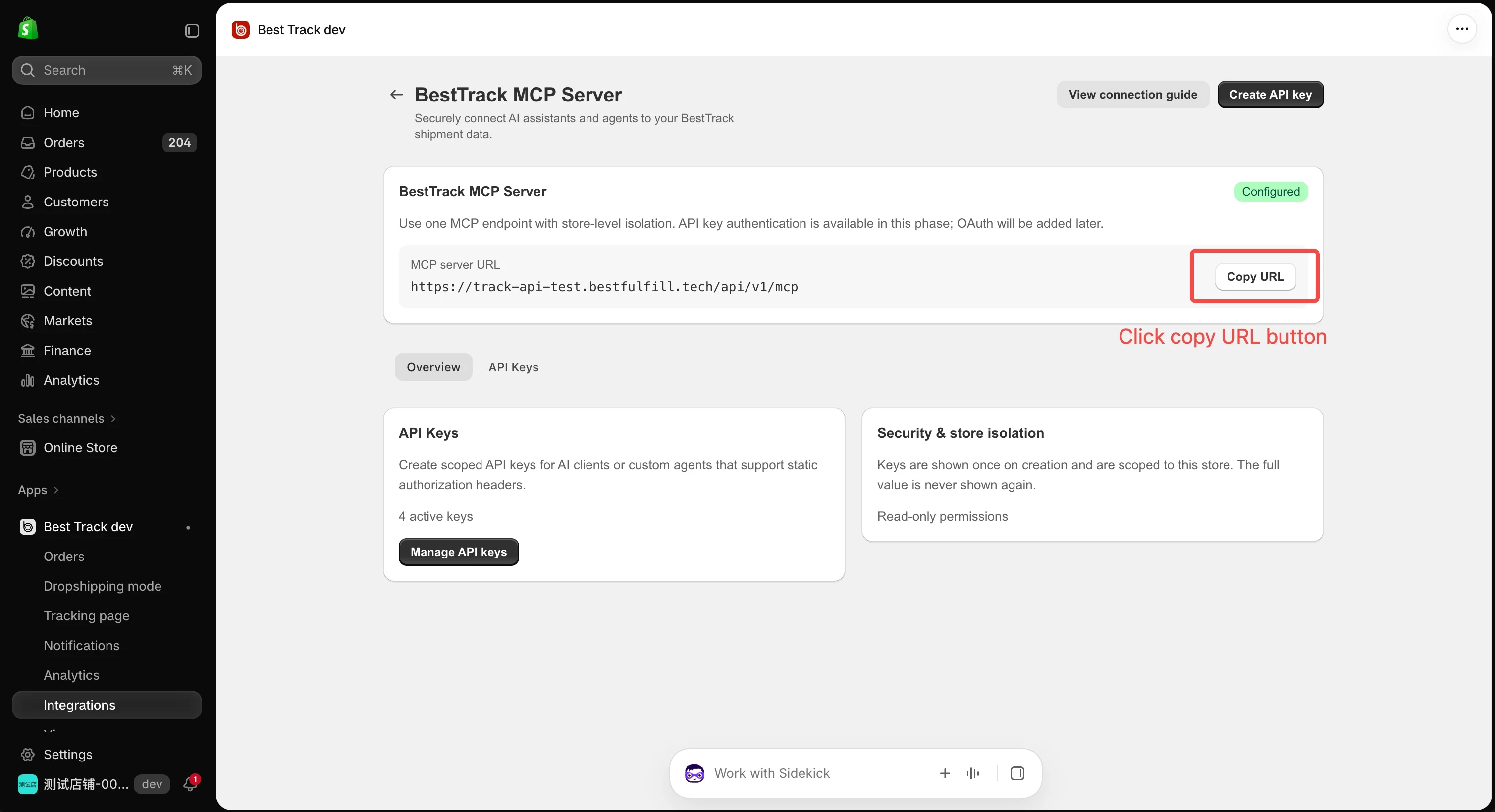
3. Copy the MCP Server URL
Copy the MCP Server URL for your current environment from BestTrack Admin. Use that value in the client; do not copy a URL from another store or environment.
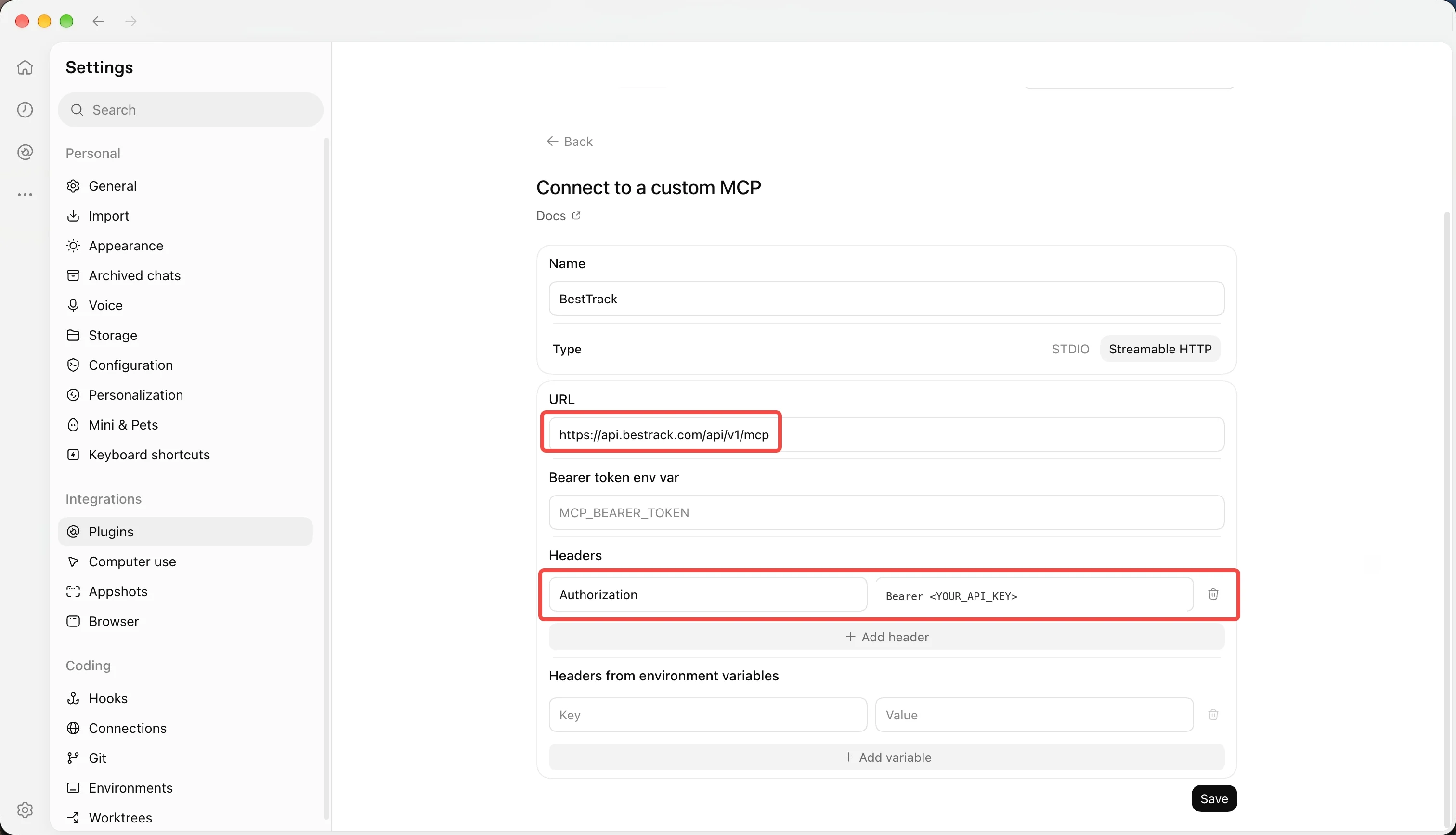
4. Configure the AI client
Add a remote HTTP MCP server in a client that lets you set custom request headers. Paste the URL from Admin and add this Authorization header:
Authorization: Bearer <YOUR_API_KEY>Different clients may use different configuration formats. This line shows the required header, not a complete client configuration file.
5. Confirm the connection
Ask the client to look up a shipment that you can also find in the current store's BestTrack Admin. Compare the returned tracking details with that store's record before using the connection for other queries.
6. Rotate, revoke, or replace the Key
When rotating a Key, create its replacement, update each client that uses the old value, verify a tracking query, then revoke the old Key in Admin. A revoked Key must be replaced in the client before it can connect again.
If a Key may have leaked, revoke it in Admin promptly, create a replacement, update affected clients, and check their recent use in Admin if that information is available.
My client cannot set custom headers. What should I do?
Use a client that supports custom headers, or follow the OAuth guide if the client supports MCP OAuth.
The query failed after I revoked a Key. Why?
The client may still be using the revoked value. Create a replacement Key, update its configuration, and try the query again.